
Getting started · Publishers
Set up your first ad placement
Create a publisher and placement, and connect demand. Then copy the ad tag into your player or integration. Tags work on the platform serving host right away; a white-label serving domain is optional. The Home checklist tracks setup, the first request, and the first impression.
1. Sign in and choose Supply
Enter your email and open the sign-in link. On your first visit, choose Supply to see inventory tools and the setup checklist. You can change this choice at the top of the sidebar.
2. Know your serving host
You don't need a domain to start. Until your tenant has its own serving domain, ad tags use the platform serving host, and the Tags tab says so. A white-label serving domain is optional and an operator sets it: ask your Riptide contact to brand one, then view it under Settings › Brand & domains. After that, the Tags tab shows tags on your own host. The Home checklist lists this step as optional, and it never blocks setup.
3. Add a publisher
Watch: Create your first publisher, a narrated console walkthrough with captions and a written guide.
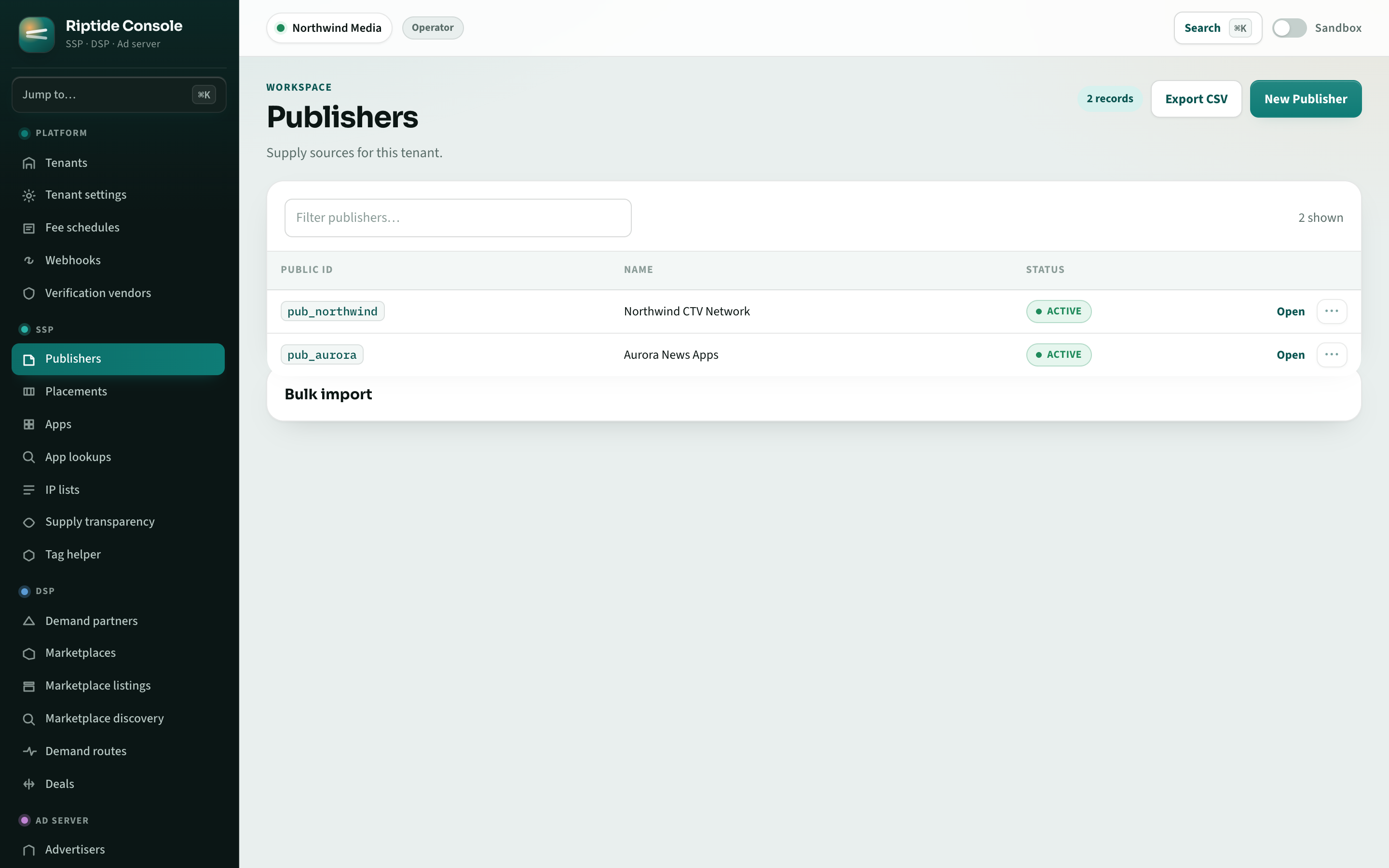
Open Publishers › New publisher and enter a name, public ID and primary domain. Choose a stable public ID because ad tags and ads.txt use it. Public IDs and domains are unique across the whole platform, so if the one you pick is already taken, choose another (the console says it is not available). Select Create and open to continue to the publisher page, where you can manage its sites, apps, placements, supply documents and fees.
Adding several publishers? Watch: Bulk import publishers with a dry run and row corrections to preview a CSV, correct an ID conflict, and verify the saved rows.
4. Add a placement
Watch: Create your first web video placement, with captions and a written guide.
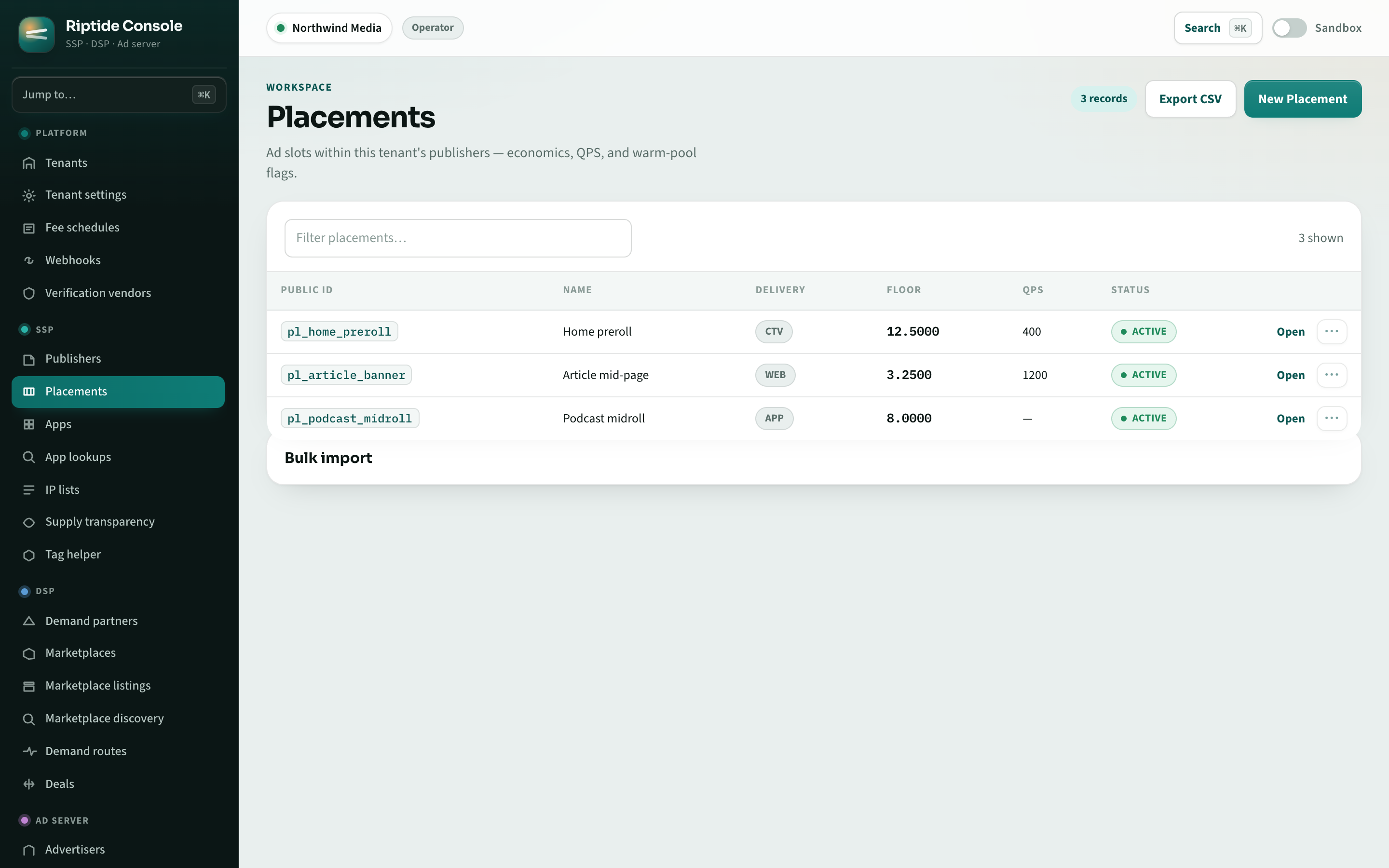
From the publisher's Placements tab, New placement opens the drawer with the publisher already selected. Give it a name and public ID, choose the channel (Web, CTV, App, DOOH), the media and a floor, then Create and open. The placement page is organised as Setup · Pricing & floors · Formats & pods · Demand · Compliance · Tags · Advanced · History.
Watch: Set a placement floor and request limit, then preview, save, and reload to verify the settings.
5. Connect demand
On the placement's Demand tab, select marketplaces and direct routes. The preview shows the available routes, their floors and fees, and any direct line items eligible to serve on this placement.
6. Copy the tag and send a test request
Copy the VAST tag URL or OpenRTB endpoint from the Tags tab. Use the macro list to configure the parameters your player supplies. If an upstream ad server calls the tag, pick that server's Macro profile first so the tag carries its own tokens; the tab warns about any entry the server should send URL-encoded. Send test request checks the placement and explains each decision step without serving or billing an ad. After you place the tag, the first live request marks "Tag placed" on Home. The first impression marks "First ad served".
Verify ads.txt
Open the publisher's Ads.txt tab to copy the entries to publish, then run verification. Under Brand safety, ads.txt & sellers.json shows verification results and document changes.
What's next
Connecting programmatic demand? Read the buyer guide. For direct campaigns, follow the advertiser guide. For local development, use the local stack guide.
Get help with your first ad request
Tell us which player or application you are connecting, the ad format, and the response you receive. The serving probe can help you inspect the response before testing playback.