1. Sign in and choose Demand
Open the sign-in link sent to your email. On your first visit, choose Demand. The sidebar groups Marketplace discovery, Activations, and Deals under Buy, with partners, routes, bidding plugins, and marketplaces under Demand setup.
2. Add a demand partner
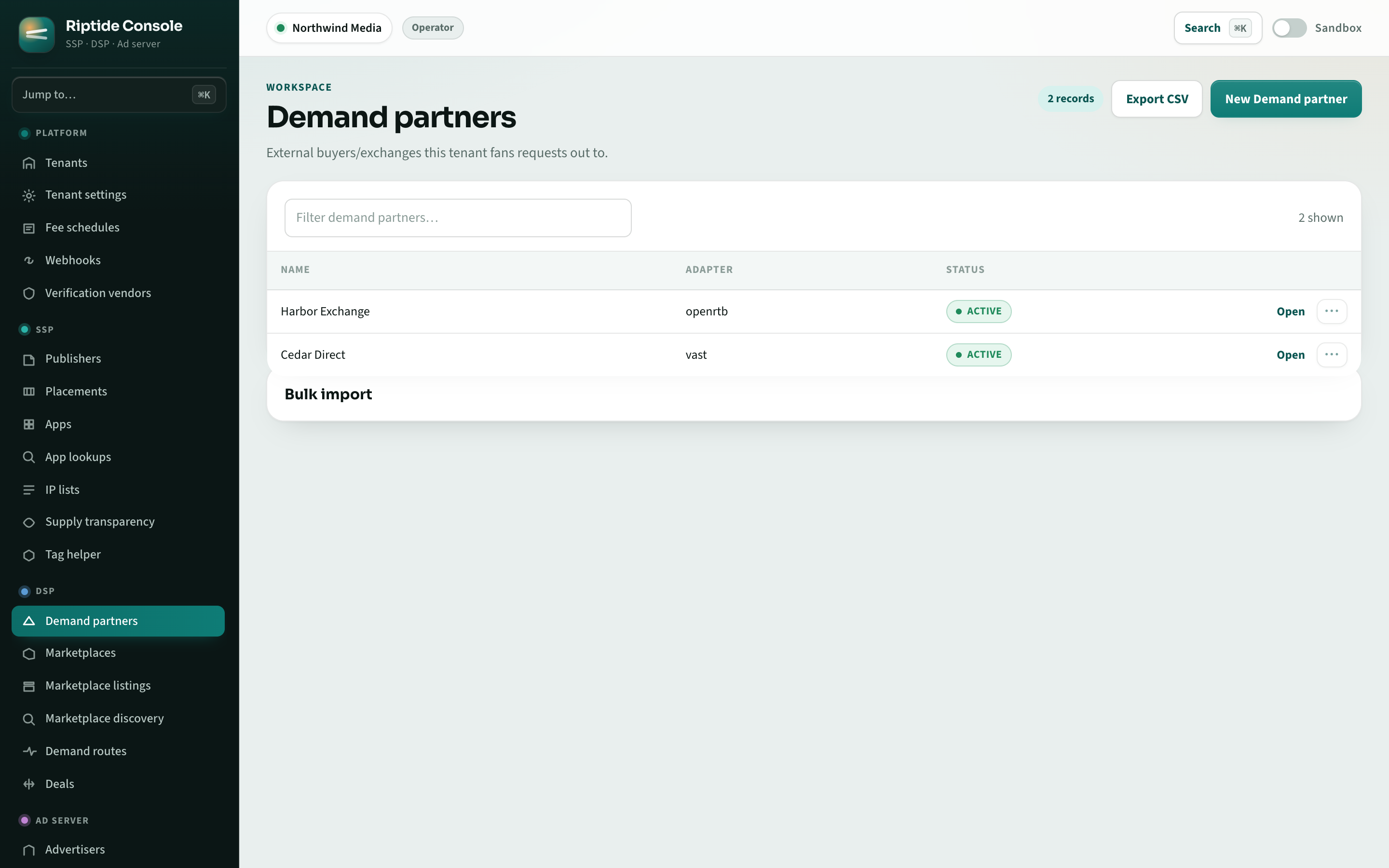
Open Demand partners › New demand partner. Enter a name and choose the adapter for the partner's protocol. Select Create and open to continue to the partner page, where you can add routes and deals and review transparency checks.
3. Add a route
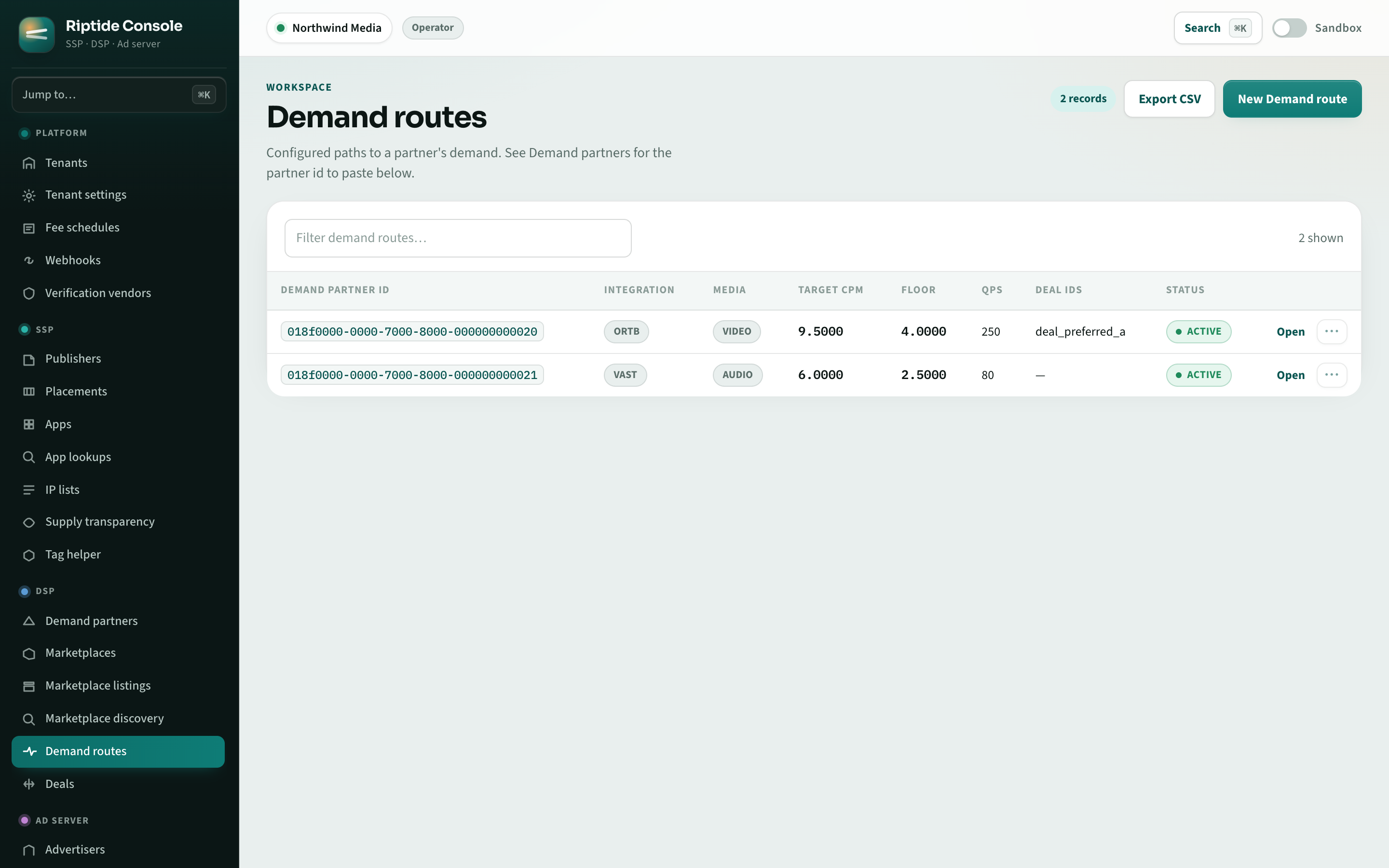
From the partner's Routes tab, New route opens the drawer with the partner already selected. Set the protocol, media, target CPM, floor and QPS cap. On the route page, configure endpoint URLs, fan-out and supply-chain settings. Preview request rewrites before saving them.
4. Attach placements
Open the route's Placements tab and select the placements that should use it. You can also view or change the connection from each placement's Demand tab, which previews all demand available to that placement.
5. Book a deal
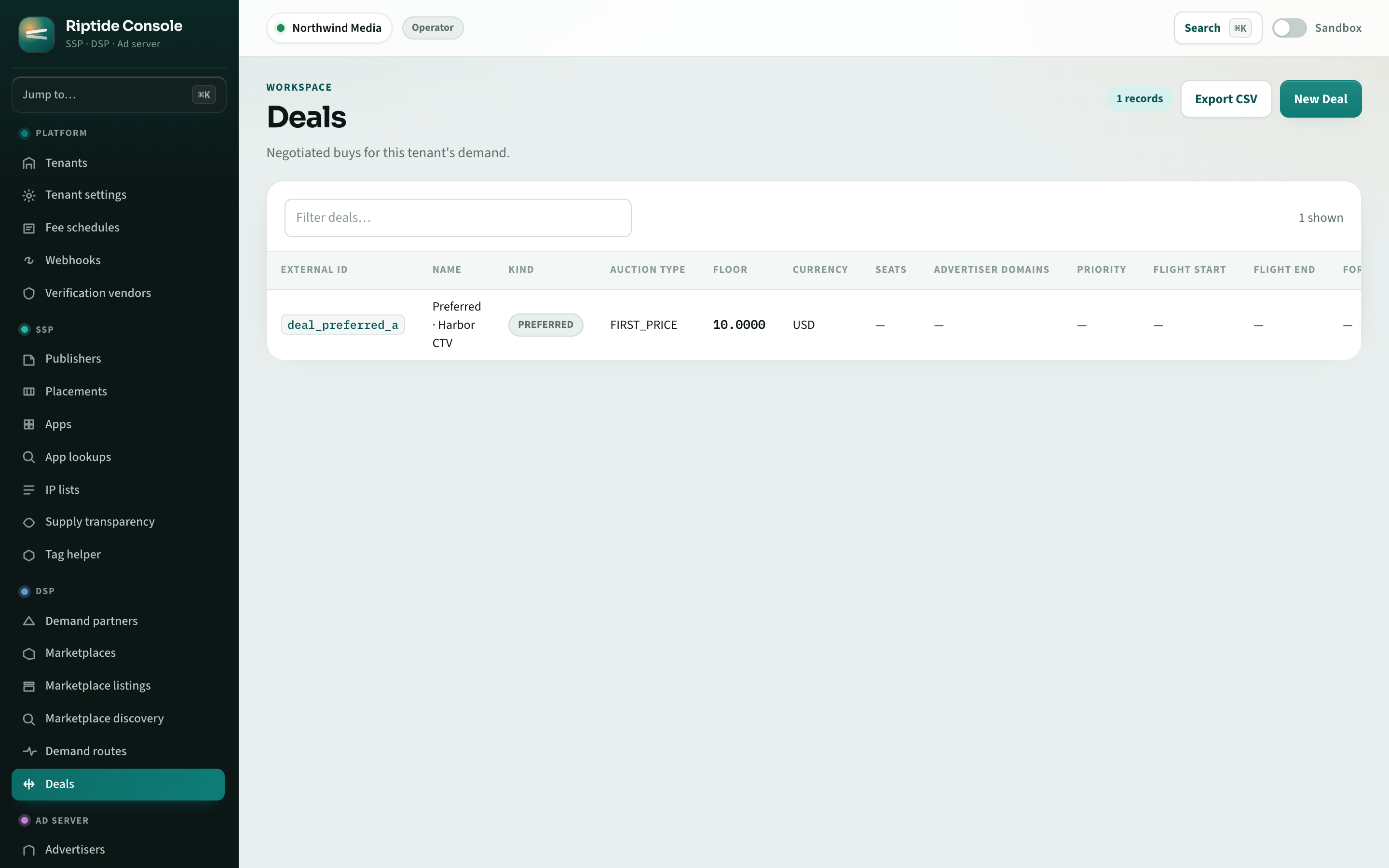
Open Deals › New deal. Choose preferred, guaranteed or private, then enter the external ID the buyer sends in OpenRTB, floor and currency. Use the Routes & marketplaces tab to attach the deal to routes and package it in marketplaces. Once traffic flows, the Health tab reports requests, bids, fills and win rate by partner.
Activate a listing
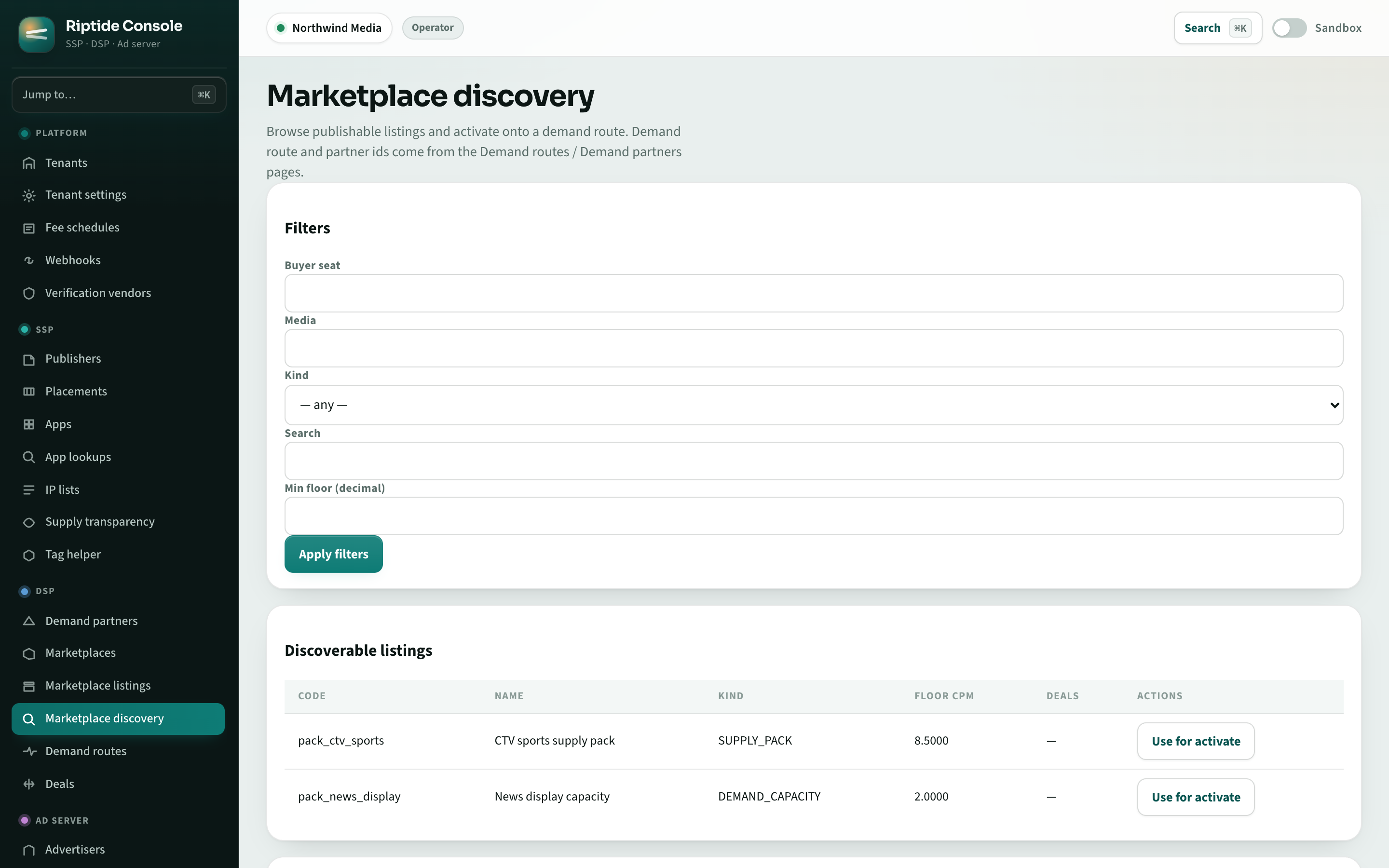
Browse Marketplace discovery for listings from other tenants. Select Activate on a listing, choose your route, and review the activation settings. Manage the activation and any proposals from the Activations page.
What's next
Selling inventory? See the publisher guide. Running direct campaigns? Follow the advertiser guide. For local development, use the local stack guide.
Get help connecting demand
Tell us the buyer's protocol, the media you want to buy, and which route or deal needs attention. The demand guide explains what to check before activating a connection.